
Contact
E-mail: stefan@argentrealms.com
Summary
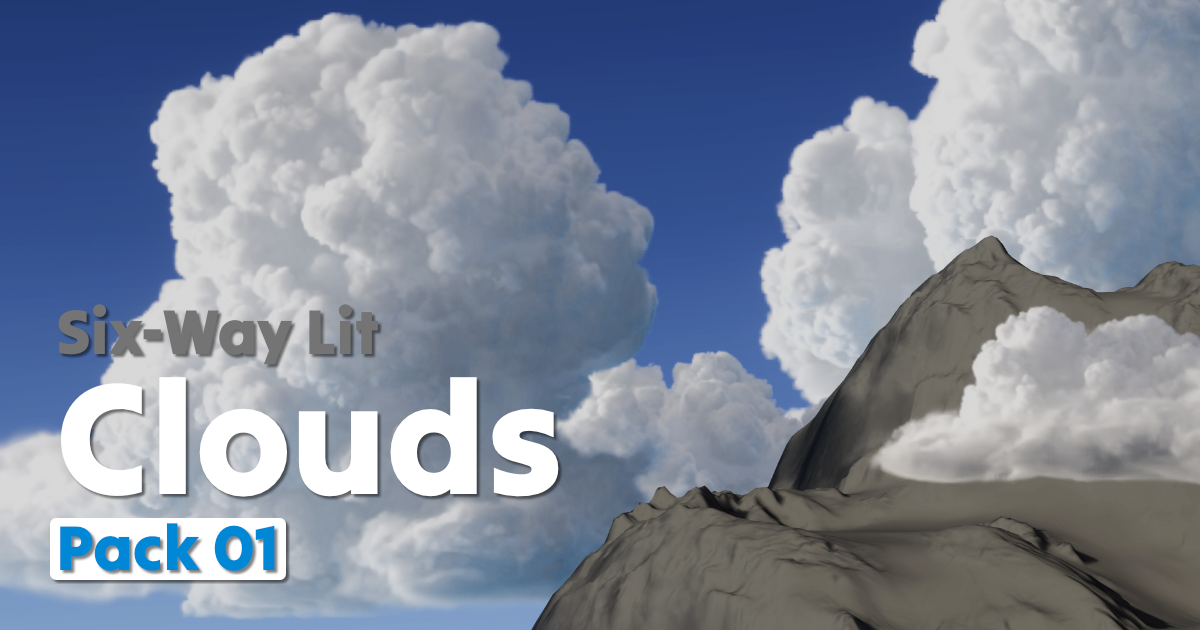
Argent Realms' Six-Way Lit Clouds are asset packs of lit cloud billboards, allowing for detailed and performant clouds to be placed freely in your scene.
The cloud textures are procedurally generated using Houdini.
The clouds are rendered using two textures, both containing lighting information for how the cloud is lit from each of the six cardinal directions. The textures are called LBF (Left, Bottom, Front) and RTB (Right, Top, Back), respectively. The RGB channels contain the three lit-channels for that texture, while the alpha channel contains transparency.
The clouds react to lighting changes, both direction and color, and also work with global illumination.
In Unity, the clouds are using a shader made using Unity's Six-Way Smoke Lit Master Node. Please note that this Master Node is only supported in URP and HDRP. For use in the Built-in Render Pipeline, or in custom Scriptable Render Pipelines, you will likely have to create your own implementation for rendering the Six-Way Lit Clouds.
Quick Start
In Assets/ArgentRealms/SixWayLitClouds/Pack_xx/Prefabs you will find all the prefabs for the clouds. Choose whatever size and shape you want, pick a cloud prefab, place it in your scene and rotate it to face the way you want.
It's that easy to start building your own sky with dozens of different clouds. Light your scene as usual and the clouds will react to your lighting.
If you want to customize the clouds you can either do it on a per-cloud basis, or you can go into Assets/ArgentRealms/SixWayLitClouds/Shared and edit the Cloud_Base material and prefab to share the changes between all clouds. See below for more details.
File Structure
The assets are split into two folders, Shared and Pack_xx (e.g Pack_01). Assets in the Shared folder are shared between packs, while the Pack_xx folder contains assets specific to that pack.
Shared
Materials
Contains the parent material used as a base for all clouds materials. Changes made to this material will propagate to all cloud materials in the pack folders. Such as changing the main color, or changing the contrast.
This material is not meant to be used by itself.
Meshes
Meshes used by the clouds in the pack folders. These meshes are made with an evenly spaced amount of vertices to support the vertex-based global illumination implemented in Unity's Six-Way Smoke Lit shader.
The meshes are shared by the different clouds based on intended cloud size, both for performance and to keep an even vertex distribution for even lighting among different cloud sizes. However, additional meshes are included in case you need different shapes, sizes, or vertex densities.
The meshes are not meant to be used by themselves.
Prefabs
Contains the parent prefab used as a base for all cloud prefabs. Changes made to this prefab will propagate to all cloud prefabs in the pack folders. Such as changing transform scale, or changing shadow settings.
This prefab is not meant to be used by itself.
Shaders
Contains the shader and sub graphs used by the Six-Way Lit Clouds.
Pack_xx
Demo
Contains demo scenes and other assets specific to the demo scenes. There are three sub-folders, Shared, URP, and HDRP. The Shared-folder contains assets used by both the URP and HDRP demos. It is recommended to only import the demo-folders that are relevant for your project. E.g, if you are using URP then you can safely deselect the HDRP demo-folder when importing the package.
There are generally two demo scenes each for URP and HDRP. One scene that just shows all of the clouds from this pack in a lineup for easy overview, and one that shows how the clouds can be used in a simple environment.
Materials
Contains the materials for each cloud, sorted into sub-folders by cloud size and type.
Prefabs
Contains the prefabs for each cloud, sorted into sub-folders by cloud size and type.
Textures
Contains the textures for each cloud, sorted into sub-folders by cloud size and type.
Naming
ID
Each cloud has a unique six-digit ID that is both used as the cloud's seed when creating it, and also conveys information about the cloud. The first two digits represent which pack the cloud is part of, the third digit represents the size, the fourth digit the type of cloud, and the last two digits are for the specific instance of cloud in that type.
For example, the cloud with ID 012304 breaks down to the following:
Pack: 01
Size: 2
Type: 3
Instance: 04
Sizes
The clouds come in various sizes, with the size being measured as the width of the cloud. Depending on the cloud's shape, the cloud texture's height may be larger or smaller than the width to fit the entire cloud texture in the smallest possible area.
the smallest size, size 1, starts at a width of 256 pixels. Sizes increase by a factor of two with each increment. So size 2 is 512 pixels wide, and size 3 is 1024 pixels wide.
Type
There are various cloud types. These may vary depending on the pack, but are generally split into 3 types:
1 Humilis, are generally wider than they are tall.
2 Mediocris, are generally even in shape.
3 Congestus, are generally taller than they are wide.
Note that these shapes are generalizations. Depending on the design of the clouds in each pack, and random variation in the procedural generation process when making the clouds, not all clouds fall neatly into one specific category.
Shader Features
This section presents an overview of the different fields and features of the included Six-Way Lit Cloud shader.
Render Pipelines
URP and HDRP are supported, due to these being the only render pipelines that support Unity's Six-Way Smoke Lit Master Node. For use in other Render Pipelines you will likely have to create your own implementation for rendering the Six-Way Lit Clouds.
Textures
Both the LBF and RTB textures are lightmaps containing information for how the cloud should be lit from different directions.
LBF
Sets the LBF texture of the cloud. This is already set by default in the existing clouds, so you will likely not have to adjust it.
RTB
Sets the RTB texture of the cloud. This is already set by default in the existing clouds, so you will likely not have to adjust it.
Color
Base Color
Sets the base color of the cloud. The alpha-channel is multiplied with the alpha-channel from the RTB-texture and lets you change the transparency of the cloud.
Color Absorption
Controls the light absorption intensity per color component, letting you tweak how the cloud color interacts with light. This is only used if the Use Color Absorption Surface Setting is enabled at the top of the material. Disabling Use Color Absorption will give you less realistically colored clouds, but may improve performance.
Contrast
The Contrast settings allow you to stylize the clouds by adjusting the contrast of the LBF and RTB textures before the final lighting is calculated.
The default values of Contrast Pivot = 0.5 and Contrast Intensity = 1 are the natural or realistic values. Any other values will exaggerate the lighting.
Contrast Pivot
Controls the center of the contrast adjustment.
Contrast Intensity
Controls how strong the contrast adjustment is.
Posterization
Posterization lets you further stylize the clouds by essentially snapping the values in the LBF and RTB textures to the closest band of color. This is common in various types of toon-shading.
Enable Posterization
To use posterization this setting must be set to true. With this setting disabled, no posterization will be applied. This is implemented with a keyword, so it will generate an additional shader variant. If you need further optimization, you can remove this keyword and only keep the path in the Shader Graph that you use for your project.
Posterization Steps
Sets how many steps, or bands, the lightmaps should be posterized into. A lower value will result in fewer steps and more extreme color changes.